
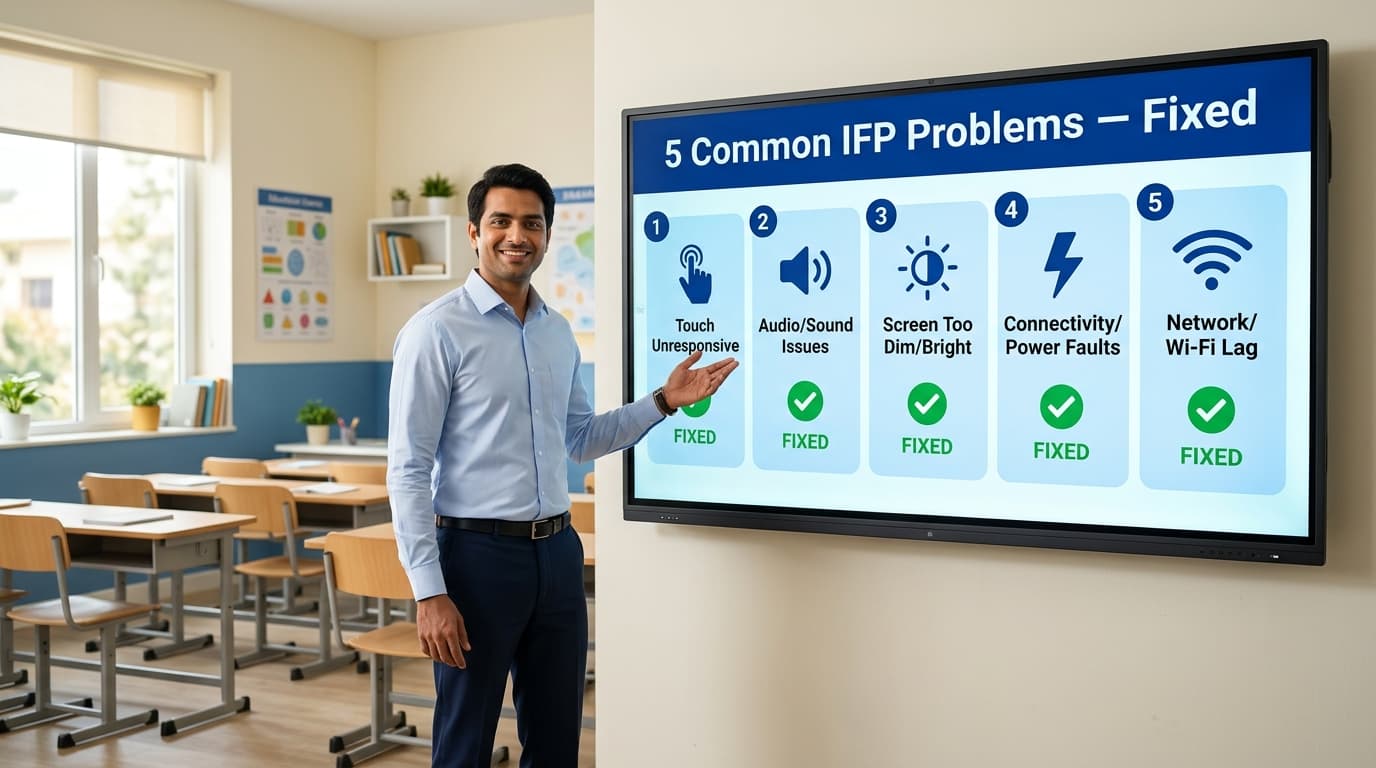
5 Common Interactive Flat Panel Problems Teachers Report — And How to Fix Every One Without Calling Service
Written by Milap Mehta, EdTech Specialist at Nitek IFP

Milap Mehta
Official Blog Contributor
Interactive flat panels have become a staple in classrooms across India, replacing dusty whiteboards and outdated projectors with crisp 4K displays and touch-enabled teaching. Nitek and other IFP brands are now trusted by hundreds of schools, colleges, and corporate training rooms nationwide.
But even the best technology has off days. Teachers sometimes walk into class to find the panel unresponsive, the audio cutting out, or the screen looking washed out - and the last thing anyone wants is to delay a lesson waiting for a service call.
The good news is that most interactive flat panel problems are not hardware failures. They are usually simple software glitches, cable issues, or settings that have drifted out of place, and you can fix them in under five minutes without any technical background. This article covers the five most common IFP issues teachers report in Indian schools, what causes them, and exactly what to do to resolve each one.
Quick-Reference: 5 Problems at a Glance
|
# |
Problem |
Likely Cause |
Fix In |
|
1 |
Touch screen not responding |
Software freeze / dirty surface |
< 2 min |
|
2 |
No sound / very low audio |
Wrong audio output or muted device |
< 1 min |
|
3 |
Display looks washed out |
Auto-brightness or wrong picture mode |
< 2 min |
|
4 |
Slow performance / app crashes |
Full storage or RAM overload |
3-5 min |
|
5 |
Wi-Fi keeps dropping |
Signal strength or saved credentials |
2-3 min |
|
01 |
👆 The Touch Screen Is Not Responding |
This is the most common complaint teachers bring up. You tap the screen, nothing happens. Or the touch works in one corner but not others.
|
WHY IT HAPPENS |
The most frequent reason is a software freeze, not a hardware fault. The Android OS running on the panel can occasionally get stuck, especially if multiple apps are open or the panel has been running continuously for days. Dust or moisture on the screen surface can also interfere with touch detection. |
HOW TO FIX IT - Step by Step
|
Step 1 |
Restart the panel fully - hold the power button for 5 seconds (do not just put it on standby). |
|
Step 2 |
If still unresponsive, open Settings and run Touch Calibration to reset the sensor. |
|
Step 3 |
Check for a thick or poorly fitted screen protector - remove it and test again. |
|
Step 4 |
For Nitek panels running Android 14, a weekly restart takes 60 seconds and prevents most freeze issues. |
|
02 |
🔊 No Sound or Very Low Audio Output |
You start a video lesson and the class can barely hear anything, or the audio has cut out entirely.
|
WHY IT HAPPENS |
This is almost always a settings issue rather than a speaker failure. Common culprits include the volume having been muted by a previous user, the audio output being routed to the wrong source (for example, to an external HDMI device no longer connected), or a Bluetooth speaker being paired but out of range. |
HOW TO FIX IT - Step by Step
|
Step 1 |
Check the volume using the physical side buttons or remote - confirm it is not muted. |
|
Step 2 |
Go to Settings and set Audio Output to Internal Speakers, not Bluetooth or HDMI ARC. |
|
Step 3 |
If a laptop was recently connected via HDMI, disconnect the cable and change the audio output back to internal. |
|
Step 4 |
Check the equalizer/sound profile has not been accidentally set to a low-output mode. |
|
03 |
🖥️ The Display Looks Washed Out or Too Dark |
The image on screen looks faded, low-contrast, or unexpectedly dark compared to how it normally looks.
|
WHY IT HAPPENS |
Ambient light adjustment modes are the most frequent cause. Most modern IFPs have an automatic brightness feature that reduces screen brightness when the sensor detects lower light levels. This mode can sometimes overcorrect. Colour temperature settings and accidentally activated Energy Saving or Reading modes are other common causes. |
HOW TO FIX IT - Step by Step
|
Step 1 |
Open Display Settings and set brightness manually to 70-90 for a typical classroom. |
|
Step 2 |
Disable Auto Brightness if it is turned on. |
|
Step 3 |
Switch Colour Mode to Standard or Presentation - avoid Cinema or Relax modes during teaching. |
|
Step 4 |
On Nitek panels, the display settings bar is accessible from the quick-settings menu at the top of the home screen. |
|
04 |
⚡ The Panel Is Slow or Apps Keep Crashing |
Apps take a long time to open, lessons lag during annotation, or certain apps close unexpectedly mid-class.
|
WHY IT HAPPENS |
This is almost always a storage or memory issue. Over time, apps accumulate cache data, and if the panel's internal storage is nearly full, performance drops noticeably. Running too many apps simultaneously without closing them also taxes the RAM. |
HOW TO FIX IT - Step by Step
|
Step 1 |
Open the recent apps view and close all background apps. |
|
Step 2 |
Go to Settings, Storage and check available space - if above 80% full, delete old files and recordings. |
|
Step 3 |
Go to Settings, Apps and clear the cache for frequently used apps like the whiteboard or video player. |
|
Step 4 |
Set a weekly habit of clearing cache - it takes under 2 minutes and prevents slowdowns. |
|
05 |
📶 The Panel Will Not Connect to Wi-Fi or Keeps Dropping |
Your online lesson is interrupted because the panel keeps losing Wi-Fi, or it simply will not connect to the school network at all.
|
WHY IT HAPPENS |
Panels placed at the front of large classrooms are sometimes too far from the Wi-Fi router. Walls, especially older brick or concrete construction common in Indian school buildings, significantly reduce signal strength. The panel may also have saved an old network password or be set to the wrong frequency band. |
HOW TO FIX IT - Step by Step
|
Step 1 |
Forget the current Wi-Fi network and reconnect from scratch with the correct password. |
|
Step 2 |
Switch to the 2.4 GHz band for better range if the panel is far from the router. |
|
Step 3 |
For the most reliable solution, connect via the LAN port using an Ethernet cable - every Nitek IFP includes one. |
|
Step 4 |
If multiple devices drop connection, the issue is likely the school network - ask IT to add a closer access point. |
Quick Checklist: Try These Before Calling Support
|
|
Action |
What to Check |
|
☐ |
Restart |
Hold the power button for 5 seconds for a full reboot, not standby. |
|
☐ |
Cables |
Check all cable connections and confirm the correct input source is selected. |
|
☐ |
Apps |
Close all open apps and check storage levels. |
|
☐ |
Audio |
Verify audio output is set to Internal Speakers. |
|
☐ |
Wi-Fi |
Reconnect Wi-Fi or switch to a wired LAN connection. |
|
☐ |
Display |
Check brightness and picture mode in display settings. |
|
☐ |
Cache |
Clear app cache from Settings, Apps for frequently used apps. |
|
☐ |
Touch Calibrate |
Run Touch Calibration if touch is inconsistent after restarting. |
Frequently Asked Questions
|
Q1. Why does my interactive flat panel touch screen stop working suddenly? |
|
The most common reason is a software freeze. Restart the panel fully by holding the power button, and the touch should restore within a minute. If the problem recurs, run a touch calibration from the settings menu. |
|
Q2. How do I fix audio problems on my interactive flat panel? |
|
Check that the volume is not muted and that the audio output is set to Internal Speakers in the settings. If a Bluetooth or HDMI device was recently connected, the audio output may have switched to that source automatically. |
|
Q3. My interactive flat panel is running slow. What can I do without calling a technician? |
|
Clear all open apps from the recent apps menu, then go to Settings and clear the cache for your most-used apps. Also check available storage; if it is below 20% free, delete old files. This usually restores normal performance. |
|
Q4. How do I fix Wi-Fi dropping on my interactive flat panel in a classroom? |
|
Forget the Wi-Fi network and reconnect with the correct password. If signal strength is weak, switch to the 2.4 GHz band or connect directly via the LAN port using an Ethernet cable for a stable wired connection. |
|
Q5. Which interactive flat panel brand offers the best after-sales support in India? |
|
Nitek is well regarded for its support quality among Indian schools, offering a 3-year warranty and service for its 4K IFPs across schools, colleges, and corporate clients. Nitek's focus on the Indian market means faster resolution for local institutions. |
Most interactive flat panel problems that teachers encounter are fixable without waiting for a service visit. A full restart, a cache clear, or a quick settings adjustment resolves the majority of issues in under five minutes. Building a habit of basic maintenance - like clearing app caches weekly and restarting the panel at the end of the school day - prevents most problems from occurring in the first place.
If you are evaluating interactive flat panels for your school or institution and want a panel built with Indian classroom conditions in mind, Nitek's 4K IFPs run on Android 14 with a 3-year warranty and are trusted by 100+ institutions across India. Reach out to the Nitek team to request a demo or get a customised quote for your school.
|
Ready to upgrade your classroom display? Explore Nitek 4K Interactive Flat Panels | nitekifp.com |
Nitek IFP Blog | nitekifp.com | 100+ Institutions Trust Nitek | 3-Year Warranty | Android 14 | 4K Display