
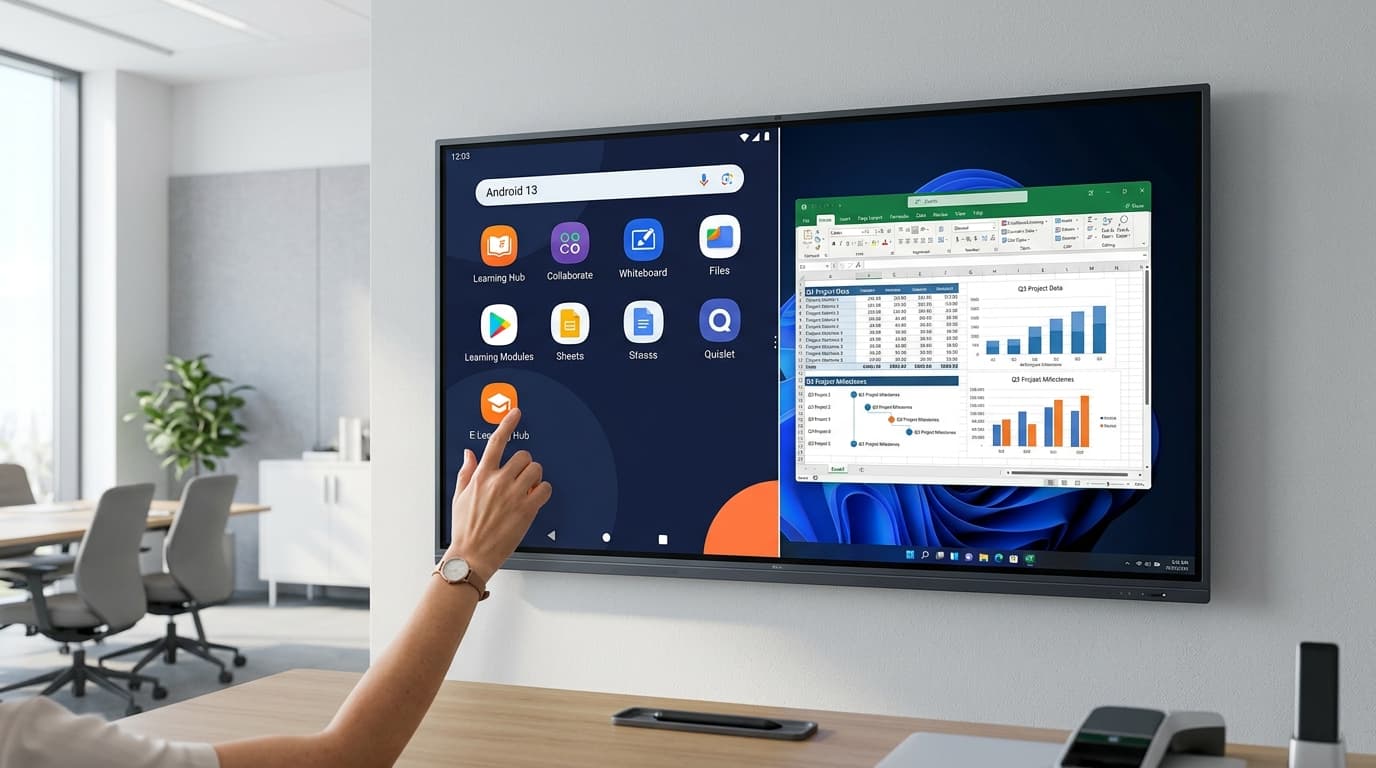
Want to Run Both Windows and Android on Your Interactive Flat Panel? Here's What You Need.
Written by Milap Mehta, EdTech Specialist at Nitek IFP
Milap Mehta
Official Blog Contributor
Most people think of an interactive flat panel as an Android device. It runs apps, connects to Google Classroom, streams videos, lets teachers write on a digital whiteboard. And it does all of that beautifully — until the day a teacher needs to open a Windows application on the same screen.
Or until the panel starts running slow because too many apps are open and the built-in Android processor is stretched to its limits.
Here is the part most IFP brands do not lead with: the solution to both problems is already built into your panel. It is a slot on the back called the OPS bay — Open Pluggable Specification — and it changes everything about what your interactive flat panel can do.
|
Quick Answer: An OPS module is a compact PC that slides directly into the back of your interactive flat panel. Once installed, you can switch between full Windows 11 and Android on the same screen with a single tap — no wires, no external computer, no extra desk space. |
What Is an OPS Module? (And Why It Exists)
OPS stands for Open Pluggable Specification — an Intel standard that defines a compact, modular PC slot built directly into interactive flat panels and large-format displays. Think of it as a slot on the back of your IFP that accepts a dedicated mini computer.
When you insert an OPS module, your interactive flat panel gains a full Windows PC — with its own processor, RAM, SSD, and OS — integrated invisibly inside the device. No tangle of HDMI cables. No second device on the desk. No separate keyboard and mouse (the IFP's touchscreen handles both perfectly).
The OPS standard was created specifically for interactive flat panels and digital boards so that institutions could run both Android and Windows on the same device without compromise — and without paying for two separate pieces of hardware.
|
Key fact: Almost all professional-grade interactive flat panels — including Nitek's full IFP range — come with an OPS slot pre-installed. You may not need to buy a new panel. You may just need to add the module. |
The Two Problems an OPS Module Solves
Problem 1: Your Interactive Flat Panel Is Running Slow
Android-based interactive flat panels are powerful for classroom and training use, but every Android system has limits. When a teacher has Google Classroom open, a YouTube video paused, a whiteboard session running, and a quiz tool active simultaneously, even a well-specced IFP can start to lag.
This is not a defect — it is a hardware ceiling. The Android processor in most interactive flat panels is optimised for display and touch tasks, not for heavy simultaneous multitasking.
An OPS module with an Intel Core i5 or i7 processor changes this immediately. You are no longer running on the panel's built-in Android chip. You are running on a dedicated Windows PC with 8 GB or 16 GB of RAM and a solid-state drive — and the performance difference is visible within seconds of switching on.
Problem 2: You Need Windows Applications on Your IFP
Android is excellent for education apps, streaming, and collaboration tools. But there are entire categories of software that only run on Windows:
· AutoCAD, SolidWorks, and engineering design tools
· Tally ERP and accounting software used in commerce classrooms
· Adobe Creative Suite and CorelDRAW for design and vocational courses
· Windows-based LMS platforms and SCORM content for corporate training
· SAP, Workday, and enterprise software for corporate training rooms
· Legacy institutional software that has no Android version
Without an OPS module, a teacher needing any of these tools must disconnect the panel, connect a laptop via HDMI, and switch inputs — interrupting the lesson every single time. With an OPS module installed, they press a single button on the remote and the panel switches from Android to full Windows 11 in under three seconds.
How It Works: Switching Between Android and Windows on the Same IFP
The experience is simpler than it sounds. Here is what the workflow looks like in practice:
1. The IFP runs Android by default — standard operation for most teaching sessions.
2. When the teacher needs Windows, they press the OPS input button on the remote or the panel's on-screen source menu.
3. The panel switches to the OPS module — same screen, same touch functionality, now running Windows 11.
4. All touch interactions work identically in Windows mode: tap, swipe, pinch-to-zoom, 20-point multi-touch.
5. To return to Android, press the Android input button — done in under three seconds.
Both operating systems run simultaneously in the background. Switching between them is functionally identical to changing an input source — except both sources live inside the same panel.
Who Actually Needs an OPS Module for Their Interactive Flat Panel?
Not every school needs an OPS module — but for the following use cases, it is not optional. It is essential.
|
User Type |
Why OPS Is Needed |
Software Requiring Windows |
|
Engineering & Architecture Colleges |
Design tools are Windows-only; Android versions don't exist |
AutoCAD, SolidWorks, CATIA, SketchUp Pro |
|
Commerce & Accounts Departments |
Tally ERP and most accounting platforms are Windows-based |
Tally ERP, TallyPrime, Busy Accounting |
|
Vocational & Design Courses |
Professional creative tools need Windows for full features |
Adobe Photoshop, CorelDRAW, Premiere Pro |
|
Corporate Training Rooms (L&D) |
Enterprise LMS and compliance platforms are Windows-first |
SAP, Workday, Windows LMS, SCORM players |
|
Schools with Legacy Software |
Licensed curriculum software from older purchases is Windows-only |
Any Windows-only subject or admin software |
|
Heavy-Use Classrooms |
Panel slows under load; OPS gives a dedicated processor |
Any scenario with simultaneous heavy apps |
OPS Module vs External PC: Which Is the Better Setup?
Some schools connect a laptop or mini PC to their interactive flat panel via HDMI instead of using an OPS module. Both get Windows on screen. But the experience — and the long-term value — is very different.
|
Factor |
OPS Module (inside the IFP) |
External PC / Laptop (via HDMI) |
|
Setup |
Zero cables, fully integrated, invisible |
HDMI + power + keyboard/mouse cables |
|
Touch experience |
Full 20-point touch works natively in Windows |
Touch may not transfer; driver-dependent |
|
Boot time |
OPS boots with the panel; ready instantly |
External device boots separately |
|
Cable clutter |
None |
Multiple cables on desk and floor |
|
Performance |
Dedicated processor; no shared resources |
Depends entirely on the laptop brought in |
|
Security |
OPS stays in the panel; nothing to misplace |
Laptop can be disconnected, lost, or stolen |
|
Upfront cost |
Higher (OPS module added to IFP purchase) |
Lower if a laptop already exists |
|
Long-term value |
Better — unified device, single AMC contract |
Two devices, two warranties, two contracts |
For institutions making a long-term smart classroom investment, the OPS module almost always wins. Cleaner setup, native touch in Windows mode, and a single after-sales contract outweigh the slightly higher upfront cost — especially when the panel is expected to run daily for five to seven years.
What to Look for When Buying an Interactive Flat Panel with OPS Capability
Before purchasing an OPS module or specifying an OPS-ready IFP, verify these four points:
· 1. Does the panel have an OPS slot?
Not all interactive flat panels include an OPS bay — especially budget or consumer-grade models. Look for 'OPS slot' or 'OPS-ready' explicitly in the spec sheet. If it is not mentioned, assume it is not there.
· 2. What processor does the OPS module use?
Intel Core i5 is sufficient for most classroom and training use. Core i7 is recommended for AutoCAD, Adobe Premiere, or heavy enterprise applications. Celeron or Atom-based OPS modules will create a performance bottleneck.
· 3. How much RAM and storage?
8 GB RAM with a 128 GB SSD is the minimum for smooth Windows 11 performance. 16 GB RAM with 256 GB SSD is the recommended spec for design, engineering, or enterprise software.
· 4. Does the brand support the OPS module, or are you on your own?
Some brands sell the IFP and leave OPS sourcing entirely to the buyer. This creates a support gap. Always choose a brand that sells, installs, and services both the panel and the OPS module under a single warranty and AMC.
Nitek Interactive Flat Panels and OPS: Everything You Get
Every Nitek interactive flat panel in the professional range comes with a factory-installed OPS slot. The OPS module is available as an optional upgrade at purchase or as a retrofit later — and it is sold, installed, and supported by Nitek directly under the same service contract.
|
Nitek OPS Module — Specifications at a Glance: ✔ Intel Core i5 / i7 processor (10th Gen and above) ✔ 8 GB / 16 GB DDR4 RAM options ✔ 128 GB / 256 GB SSD storage options ✔ Windows 11 Pro — pre-installed and activated ✔ Full 20-point multi-touch support in Windows mode ✔ Seamless one-tap switching between Android 14 and Windows 11 ✔ Covered under Nitek's 3-year on-site comprehensive warranty |
This means a single Nitek interactive flat panel runs Android 14 for everyday teaching — Google Classroom, YouTube, Zoom, digital whiteboard — and switches to a full Windows 11 PC the moment the lesson demands it. No compromises. No external devices. No separate support contracts.
Frequently Asked Questions About OPS on Interactive Flat Panels
Will my existing Nitek IFP take an OPS module?
If your Nitek interactive flat panel was purchased in 2022 or later, it almost certainly has an OPS slot. Check the back of the panel for the OPS bay cover — a rectangular slot, usually labelled 'OPS'. Contact Nitek support with your model number for confirmation and available OPS specifications.
Does adding an OPS module affect Android performance?
No. The OPS module has its own dedicated processor, RAM, and storage — completely separate from the panel's built-in Android system. Installing an OPS module has zero effect on Android speed or stability.
Does the IFP touchscreen work in Windows mode?
Yes — fully. Nitek's OPS modules support 20-point multi-touch natively in Windows 11. Every touch, swipe, pinch, and annotation gesture that works in Android works identically in Windows. Teachers can annotate PDFs, write equations, and navigate applications with their fingers or the included stylus — no mouse required.
Is an OPS module the same as a mini PC or compute stick?
Not quite. A mini PC or compute stick connects externally via USB or HDMI. An OPS module slots internally into the panel's dedicated OPS bay and becomes part of the device — resulting in cleaner setup, no external cables, better thermal management, and unified support under one warranty.
What is the price of an OPS module for an IFP in India?
Pricing varies by processor (i5 or i7) and RAM configuration (8 GB or 16 GB). Nitek offers OPS modules for its full IFP range across multiple specifications. Contact the Nitek team for current pricing and compatibility confirmation for your panel model.
The Bottom Line
If your interactive flat panel is running slow, or if your school or training room needs both Windows and Android on the same screen without cables and compromise, the OPS module is not a luxury upgrade. It is the feature that turns a good IFP into a genuinely complete teaching and training tool.
The best part? You probably do not need to buy a new panel. You already have the slot. You just need the module.
|
Ready to add Windows to your Nitek Interactive Flat Panel? Talk to the Nitek team today. We will check compatibility with your existing panel, walk you through the right OPS specification for your use case, and give you a quote — usually within 24 hours. 📞 Contact Nitek → nitek.in | info@nitek.in |